Advanced Properties in SQL Server Reporting Service.
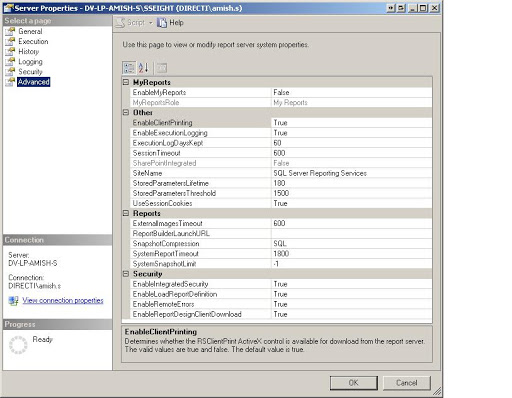
If you are using SQL Server Reporting Service 2008 then you can get Advanced property from Management Studio itself. Connect to Reporting Service in Management studio, Click on server node for properties then click on advanced.

If you are using SQL Server Reporting Service 2005 then you cant get it from management studio.There is a table ConfigurationInfo in reportserver database where you need to update this properties.
SELECT * FROM configurationinfo
you have to update related property in the table.
Fox Ex. if you want to enable remote errors
UPDATE configurationinfo SET VALUE = N’True’ WHERE name = ‘EnableRemoteErrors’
Lets see this properties in short.
EnableMyReports
Enables/Disables My Reports folder
MyReportsRole
Role which will be used for My Reports Folder.
EnableClientPrinting
Determines whether the RSClientPrint ActiveX control is available for download from the report server. The valid values are true and false. The default value is true.
EnableExecutionLogging
Enables/Disables execution logging
ExecutionLogDaysKept
Number of days you want to keep executionlog. Default is 60
SessionTimeout
session Timeout in seconds. Default value is 600.
SharePointIntegratedMode
Read-only property . Indicated whether Reporting Service is integrated with Sharepoint
SiteName
Name of site displays on Report Manager
StoredParametersLifetime
Number of days when stored parameter can be stored. Default is 180 days.
StoredParametersThreshold
Number of Parameters that can be stored.Default value is 1500.
UseSessionCookies
Decided whether use session cookies when communicating with client browsers. Default is true.
ExternalImagesTimeout
Decides time during which external image should be retrived before the connection is timed out. Default is 600 seconds.
SnapshotCompression
Defines compression method of snapshots
SQL = Snapshots are compressed when stored in the report server database. This is the current behavior.
None = Snapshots are not compressed.
All = Snapshots are compressed for all storage options, which include the report server database or the file system.
SystemReportTimeout
Time in seconds , after than server will stop processing reports. Default is 1800
SystemSnapshotLimit
Determinsed maximum number of snapshots.Default is -1 means no limit.
EnableIntegratedSecurity
Determines whether Windows integrated security is supported for report data source connections. The default is True. The valid values are as follows:
EnableLoadReportDefinition
Select this option to specify whether users can perform ad hoc report execution from a Report Builder report. Setting this option determines the value of the EnableLoadReportDefinition property on the report server.
If you clear this option, the property will be set to False and report server will not generate clickthrough reports for reports that use a report model as a data source. Any calls to the LoadReportDefinition method will be blocked.
Turning off this option mitigates a threat whereby a malicious user launches a denial of service attack by overloading the report server with LoadReportDefinition requests.
EnableRemoteErrors
Decides whether give error information related to Reporting Service to remote computers
Default is False.
EnableReportDesignClientDownload
Specifies whether Report Builder installation package can be downloaded from the report server. If you clear this setting, the URL to Report Builder will not work.
In SQL Server Reporting Service.
 Lets SQL