Archive for the ‘SQL 2008’ Category

SQL Server 2008 R2 Developers Training Kit

June 10, 2011

For all those who are new to SQL Server BI or New to SQL Server 2008 R2 , Microsoft has launched  a training kit  SQL Server 2008 R2 Developers Training Kit. Its a great resource to used to SQL Server  2008 R2. It contains a rich set of presentations, demos, hands-on labs and videos that are perfect for self-paced learning or for conducting your own training.

We can download it from 

http://www.microsoft.com/download/en/details.aspx?id=16281

What’s In the Training Kit
The training kit is divided into four sections:

  • Getting Started (for Web and BI developers who are new to SQL Server)
  • SQL Server 2008 (for experienced SQL Server developers who want to understand what’s new in 2008)
  • SQL Server 2008 R2 (for experienced SQL Server developers who want to understand what’s new in 2008 R2)
  • Office 2010 (for experienced BI developers who want to understand what’s new in 2008 R2 and Office 2010)

Here is a breakdown of each section and its associated content:

  1. Getting Started
    Web Developers: 1 Hands-On Lab, 2 Videos
    BI Developers: 32 Presentations, 27 Demos, 12 Hands-On Labs, 59 Videos
  2. SQL Server 2008
    Overview: 1 Presentation, 1 Video
    Date and Time Data Types: 1 Presentation, 1 Demo
    Spatial Data Types: 1 Presentation, 2 Demos, 2 Hands-On Labs
    FILESTREAM Blob Storage: 1 Presentation, 2 Demos
    Transact-SQL Improvements: 1 Presentation, 4 Demos
    .NET CLR Integration: 1 Presentation, 2 Demos, 1 Hands-On Lab
    Reporting Services: 1 Presentation, 1 Demo
    AdventureWorks Racing All-Up SQL Server 2008 Demo: 1 Presentation, 1 Demo
  3. SQL Server 2008 R2
    Overview: 2 Presentations, 4 Hands-On Labs, 8 Videos
    Data-tier Application Framework: 3 Presentations, 5 Demos, 2 Hands-On Labs, 9 Videos
    StreamInsight: 4 Presentations, 7 Demos, 3 Hands-On Labs, 17 Videos
    Reporting Services: 7 Prsentations, 5 Demos, 5 Hands-On Labs, 12 Videos
  4. Office 2010
    Excel 2010 and PowerPivot: 4 Presentations, 4 Demos, 3 Hands-On Labs, 8 Videos
    SharePoint 2010, PerformancePoint Services and PowerPivot: 6 Presentations, 6 Demos, 3 Hands-On Labs, 12 Videos

Server details using DMV

March 1, 2011

Sometimes we need basic server  details , we can get this information from below DMV

SELECT *
FROM   sys.dm_os_sys_info

It provides valuable miscellaneous  hardware information which includes  number of logical cpu and hyperthread ratio for servers. Also provides information for physical memory , virtual memory  , buffer pool , sql server start time . In one of my previous article I have discussed how to get SQL server start time from tempdb
But from here we can get more accurate detail about sql server start time .

SELECTcpu_count                                         logical_cpu,
       hyperthread_ratio,
       cpu_count /hyperthread_ratio                     physcial_cpu,
       physical_memory_in_bytes / ( 1024 * 1024 * 1024 ) memory_in_gb,
       virtual_memory_in_bytes / ( 1024 * 1024 * 1024 )  virtual_memory_in_gb,
       bpool_committed                                   buffer_pool_committed,
       bpool_commit_target                               buffer_pool_commit_target,
       bpool_visible                                     buffer_pool_visible,
       sqlserver_start_time
FROM   sys.dm_os_sys_info

Use of resource governor to limit CPU usage for backup compression

February 6, 2011

Resource Governor

As many of you have gone through my previous article on compress backup
Since backup compression takes higher cpu it affect other processes

Here Resource Governor comes as a useful option , where we can configure use cpu for the selected
session.

Resource governor is a new feature in SQL Server 2008 which we can use to manage cpu usage/memory usage by different  operations.

Resource governor can be helpful in many cases we will look into it one by one

Today we will look into use of resource governor in backup compression

First we will create a user who is supposed to take backup named bkp_operator.
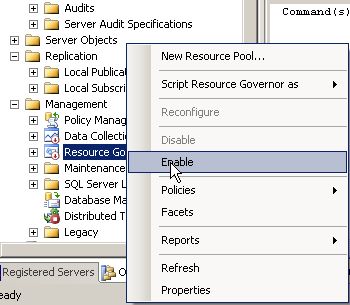
Then  we will have to enable resource governor.

Alter resource governor reconfigure

or in Management Studio

right click on resource governor and enable it

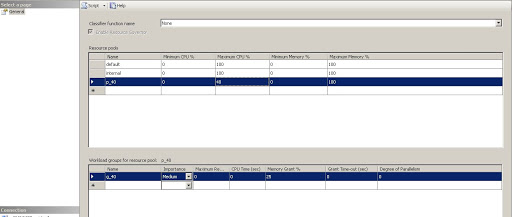
For resource governor we will have to create a resource pool

Right click on Resource pools select create new pool
create a new pool named p_40
set value of MAXIMUM  CPU% to 40

Or using TSQL

CREATE resource pool p_40
   WITH
(max_cpu_percent = 40);

create a workgroup g_40 that use this pool p_40

CREATE WORKLOAD GROUP g_40
USING p_40

Now create a classifier function that will use this group

CREATE FUNCTION dbo.Cpu_compression_for_backup()
returns SYSNAME
WITH schemabinding
AS
    BEGIN
        DECLARE@worklod_group AS SYSNAME
        IF ( Suser_name() = ‘bkp_operator’ )
            SET@worklod_group = ‘g_40’
        RETURN@worklod_group
    END;
go
ALTER RESOURCE GOVERNOR WITH (CLASSIFIER_FUNCTION= dbo.Cpu_compression_for_backup);
— Start Resource Governor
ALTER RESOURCE GOVERNOR RECONFIGURE;

Now when the user bkp_operator will backup database resource governor will assign only 40% cpu to this user .

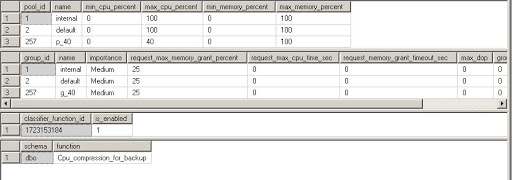
Below are the query to system tables for resource governor

SELECT *
FROM   sys.resource_governor_resource_pools
SELECT *
FROM   sys.resource_governor_workload_groups
SELECT *
FROM   sys.resource_governor_configuration
SELECT Object_schema_name(classifier_function_id) AS [schema],
       Object_name(classifier_function_id)        AS[function]
FROM   sys.dm_resource_governor_configuration

Backup Compression

February 5, 2011

Backup compression
Its a new feature in SQL Server 2008 Enterprise Edition.
Its support to compress a backup , for which we had to use third party tools earlier.
This can help us to reduce backup size, which is a big problem for growing databases.
Since it compress backup while taking backup it puts additional overhead on the CPU.
Though using resource manager we can control use of CPU by the current session.

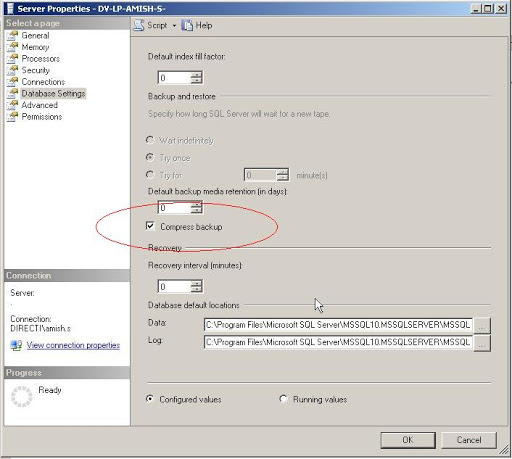
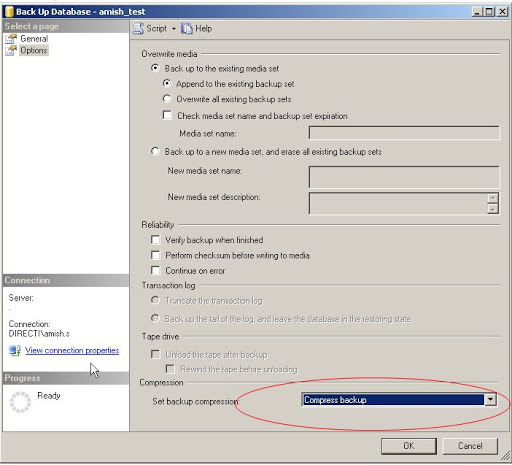
If we want to comress backup by default the we have to set this option at server level.
Here it shows how to set this at server level.

How ever we can also specify at database backup level while taking backup

We can get compression ration using this query in MSDB

img 3

SELECTbackup_size / compressed_backup_size,
       backup_size,
       compressed_backup_size
FROM   msdb..backupset
WHERE  database_name =‘amish_test’

Here the ratio is at 10.26 %, which shows backup is compressed 90%. 🙂

Here are considertions that we have to take care while taking backup
1. char  data is compressed  more than any other data.
2.If tables are compressed than backup compression will be less or not so much
3.It data is encrypted then also backup compression will be less or not so much


For more details please look into BOL .

compression part 2

February 3, 2011

Compression in partitions

We can set compression property for individual partition .

Below are the points that we have to take consideration for parition operation.

1.Merging
When two partitions are merged , resultant partition inherits compression property of destination
partition
2.merging
When two partitions are splitted , new partition will have data compression settings of source
partition
3.switching
When partitions switched between two tables both table have same data compression for the related
partition

Let see it with more examples

CREATE PARTITION FUNCTION part_function (datetime)
AS RANGE LEFT FOR VALUES (‘2011-01-01′,’2011-01-02′,’2011-01-03’) ;
GO

CREATE PARTITION SCHEME part_scheme
AS PARTITION part_function
TO ([primary], [primary] , [primary], [primary] ) ;
GO

CREATE TABLE sales
    (
         id           INT IDENTITY(1, 1),
         sales_date   DATETIME,
         product_id   INT,
         sales_amount INT
    )
ON part_scheme(sales_date)

SELECT *
FROM   sys.partitions
WHERE  object_id = Object_id (‘sales’)

ALTER TABLE sales
REBUILD  WITH (data_compression = page)

SELECT *
FROM   sys.partitions
WHERE  object_id = Object_id (‘sales’)

Now once again we rever data compression

ALTER TABLE sales
REBUILD  WITH (data_compression = NONE)

Now we  will different partition with different compression settings

ALTER TABLE sales
REBUILD PARTITION = ALL
WITH (data_compression = page on partitions (1,2),
     data_compression = row on partitions (3,4) )
or

ALTER TABLE sales
REBUILD PARTITION = ALL
WITH (data_compression = page on partitions (1 to 2),
     data_compression = row on partitions (3 to 4) )

now once again run query

SELECT *
FROM   sys.partitions
WHERE  object_id = Object_id (‘sales’)


Design a site like this with WordPress.com
Get started